Watching videos offline is the best way to save mobile data and avoid buffering. This guide shows how to download YouTube videos on an Android phone with iTube, a free app that saves videos while you watch.
Only save videos you own, that are in the public domain or Creative Commons, or that you have permission to download. See our disclaimer.
What you need
- An Android phone or tablet
- The iTube APK (free)
- A Wi-Fi or mobile connection for the first download
- A little free storage space
Step-by-step: download a video
- Install iTube. Get the APK from the download page and follow the install guide.
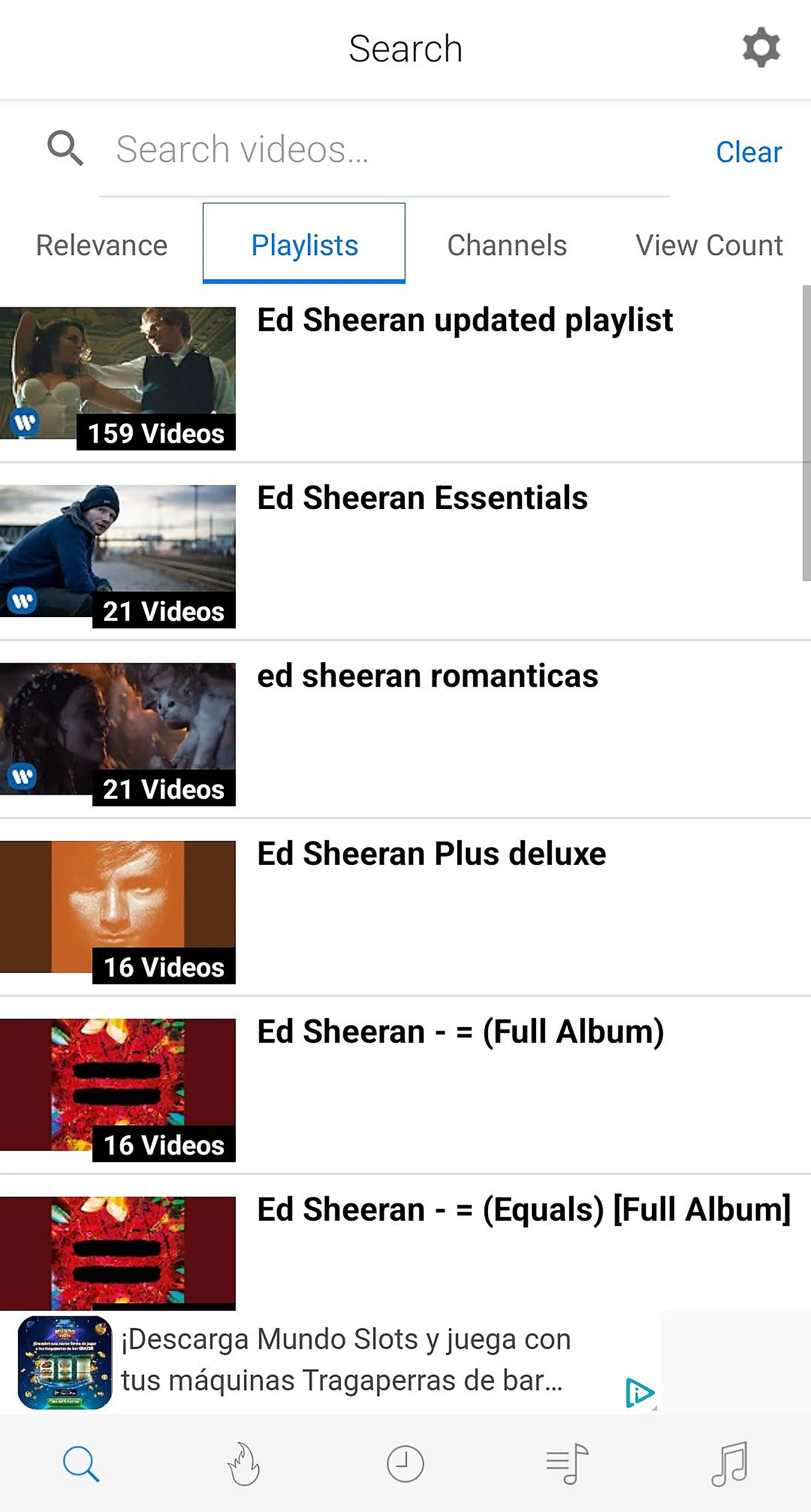
- Search or open a video. Use the built-in search to find the video you want and start playing it.
- Tap the download option. iTube lets you download a video while you are watching it, so there is no copy-pasting of links.
- Choose video or audio. Pick a video quality, or choose an audio format such as MP3 or M4A if you only want the sound.
- Watch offline. Open your library inside iTube and play the saved item with no internet connection.
What it looks like

Tips for better downloads
- Use Wi-Fi for long or high-resolution videos to avoid using mobile data.
- Pick a lower quality if storage is tight. 480p looks fine on most phone screens.
- Sort into playlists to keep music, tutorials and lectures separate.
- Delete watched files from the library to free up space.
Where are downloads saved?
Downloads are managed inside iTube's own library, where you can sort, build playlists and delete items. Open the app to find them rather than looking in the phone's Downloads folder.
Troubleshooting
- Download will not start: check your connection and free storage, then retry.
- Install blocked: allow installs from your browser or file manager in Android settings.
Ready to try it? Download iTube APK.